
Video podcasts often use separate microphones because they provide much clearer sound. Meanwhile, cameras stay farther away to capture a properly framed video. Interviews also use dedicated microphones to record clear audio from guests. This setup makes audio and video synchronization necessary during the editing process.
Long conversations may include several segments that need separate syncing and checking. This guide explains the complete process using Filmora for desktop step-by-step.
Part 1. Plan One Reliable Audio Source for Each Recorded Segment
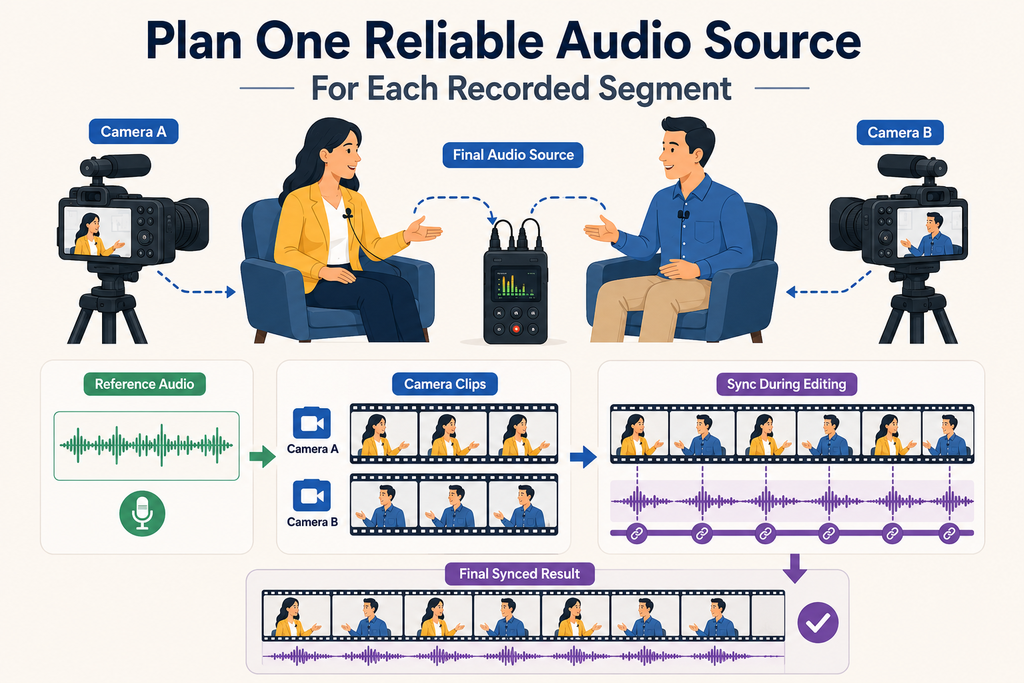
Before recording, decide which microphone will capture the final conversation audio. For two-person interviews, one recorder can capture both lapel microphones together. Separate recorders also work when each person uses their own dedicated microphone. Meanwhile, each camera should record reference audio throughout its matching interview segment.
This reference helps editors sync audio to video during editing later. Multiple cameras and recorders create several files that require careful pairing afterward. Match every camera clip with external audio recorded during that same segment.
Part 2. Create a Shared Sync Cue Before the Conversation
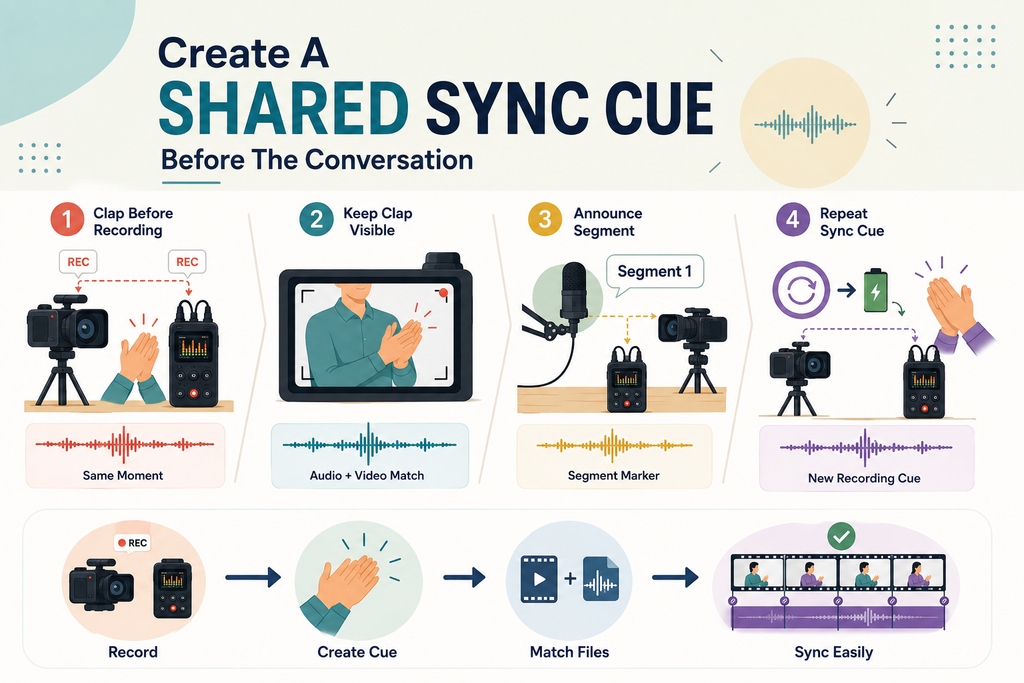
A shared cue makes it easier to auto-sync video and audio. Below are the simple ways to create clear cues before each conversation:
- Clap Before the First Question: Make one sharp sound after both devices start recording.
- Keep the Clap in Frame: Visible hands help you check the match through sound and picture.
- Announce Each Segment: State its number aloud so every recording contains the same label.
- Repeat After Every Stop: Create another cue whenever recording stops or batteries need replacement.
Part 3. Organize Interview Takes Before Synchronizing
Long interviews often create several files because cameras stop or breaks happen. Restarted questions can also make matching video clips with audio more difficult. Organize each recorded segment before you sync audio to video during editing:
| What to Separate | Why It Causes Problems Later |
| Restarts | Two attempts at one question look identical until you notice the wording differs |
| Camera Stops | A camera that stopped mid-answer splits one audio range across two video files |
| Breaks | The recorder often keeps running through a break while the camera does not |
| Separate Questions | Each question becomes its own pair, so label them while you still remember |
Part 4. Synchronize One Corresponding Pair in Filmora
Filmora can auto-sync video and audio by matching sound from both recordings. Go through the steps below to synchronize each matching pair without confusion:
Step 1. Place the Matching Pair on the Timeline
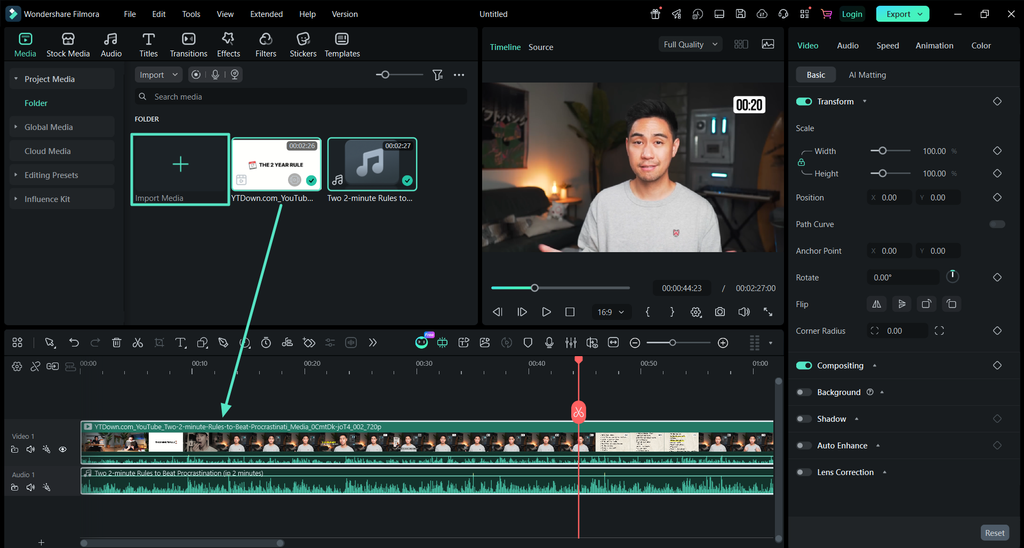
Once you create a new project in Filmora, press the “Import” button to import both video and audio files. Next, drag and drop both files onto the timeline to begin working on them.
Step 2. Select Both and Apply Auto Synchronization
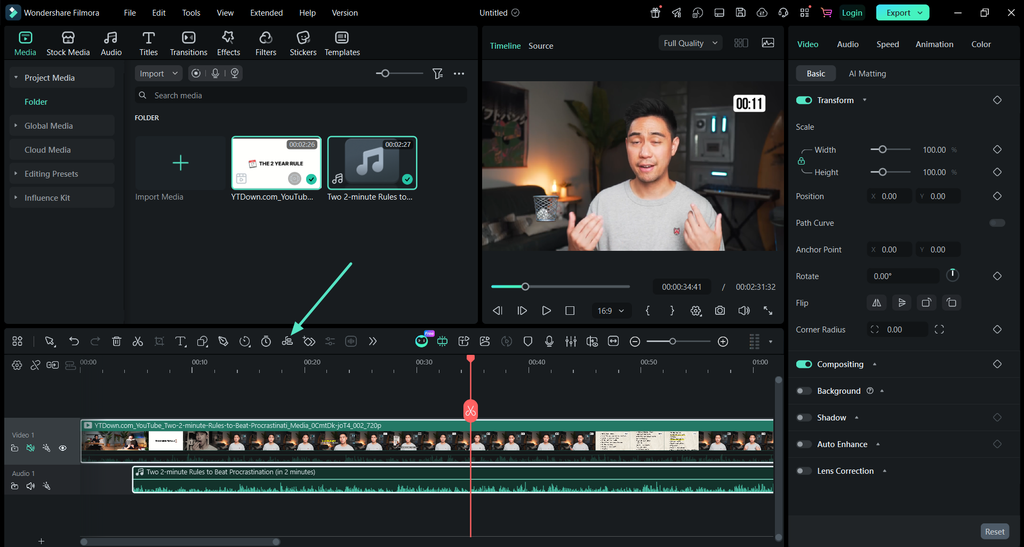
After that, press the “CTRL” key on your keyboard and select the audio and video to bring the “Auto Synchronization” button onto the toolbar. Click that button, and Filmora analyzes the shared sound and moves the audio into position.
Step 3. Export the Synchronized Video
Once the auto synchronization is done, play the video and press the “Export” button in the top right corner to save the video.
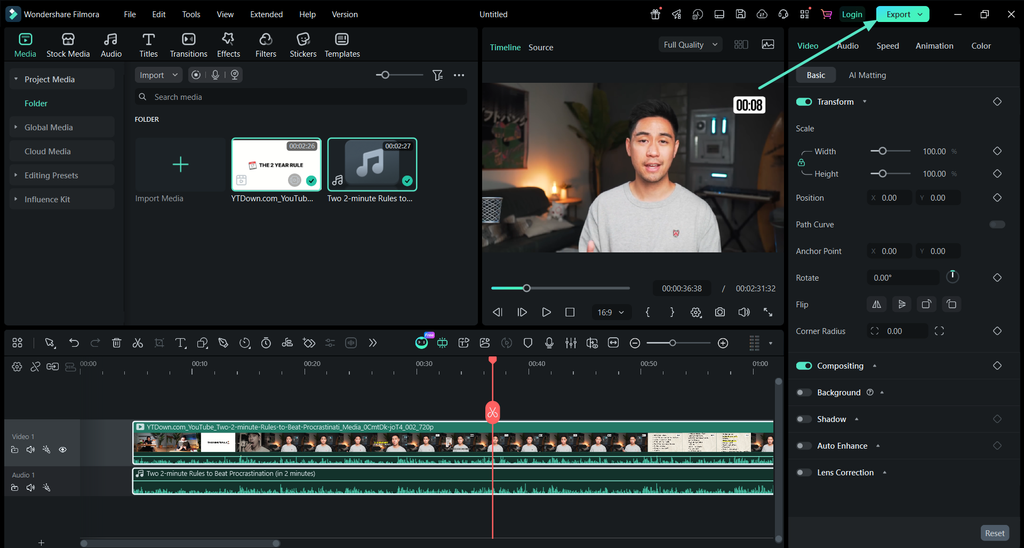
Note: Auto Synchronization works with one video and one audio clip per process. This feature has a free alternative where you manually match waveform peaks.
Part 5. Assemble Multiple Interview Sections Without Losing Sync
Several synced segments still need arranging into one complete interview conversation afterward. Keeping each pair together protects audio and video synchronization while moving sections.
Group Each Pair Before You Rearrange
Once aligned, group each video and audio pair before moving anything around. This keeps both files together as one block across the editing timeline. Moving the grouped pair will not shift audio away from matching video.
Arrange the Blocks into the Conversation
Place each grouped segment into the order you want for your interview. Remove unwanted sections and cut between questions while keeping each pair together. Since every pair stay grouped, rearranging sections will not disturb their alignment.
Part 6. Review Dialogue Alignment and Natural Pauses
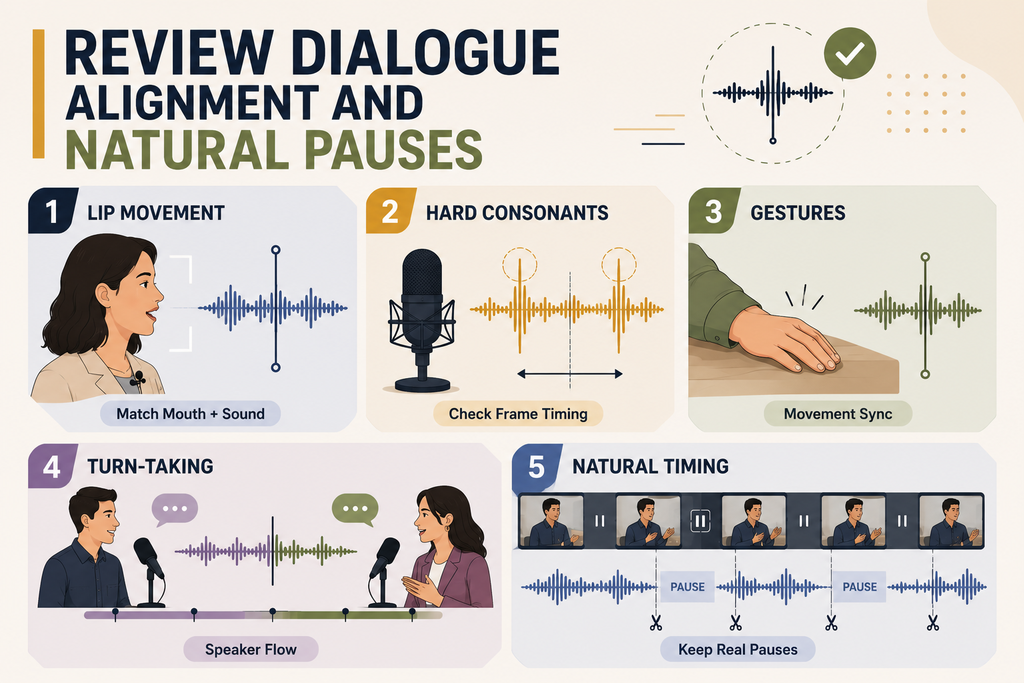
Before finishing the edit, you can add speaker names or topic labels with Filmora text animation without affecting synchronized dialogue. Below we have 5 checks for reviewing dialogue alignment and natural pauses.
- Lip Movement: Watch a close-up during a long answer, where the mouth and the sound should match exactly.
- Hard Consonants: Sounds such as p and t are sharp enough to reveal an offset of only a frame or two.
- Gestures: A hand landing on the table should be heard at the moment it is seen.
- Turn-taking: Check the joins between speakers, where a slight offset makes one person appear to interrupt.
- Natural Timing: Confirm your cuts preserve pauses that make conversations sound natural. For adding timed text afterward, the Filmora Text Animation guide explains the available text animation workflow.
Part 7. Finish the Interview Sound After Alignment
Finish sound work after every audio synchronizer pair is checked and arranged. The table below covers key audio tasks to complete after final alignment:
| What to Do | How It Helps the Finished Episode |
| Mute the Camera Audio | Removes the hollow echo of two tracks playing the same words at once |
| Balance the Speakers | Two people rarely sit at the same level, so match them before anything else |
| Clean the Recording | Denoise in the audio panel reduces hum and air conditioning behind the voices |
| Tidy the Joins | Short fades across each cut stop the room tone from jumping between segments |
| Add Music and Cutaways Last | Anything layered on now sits on top of alignment that is already confirmed |
Conclusion
To conclude, long conversations simply repeat the same synchronization process across segments. Treating each segment as one pair prevents incorrect matches from spreading further. Filmora can auto-sync video and audio after recordings are organized. Good preparation keeps even a 2-hour interview manageable throughout the editing process.
